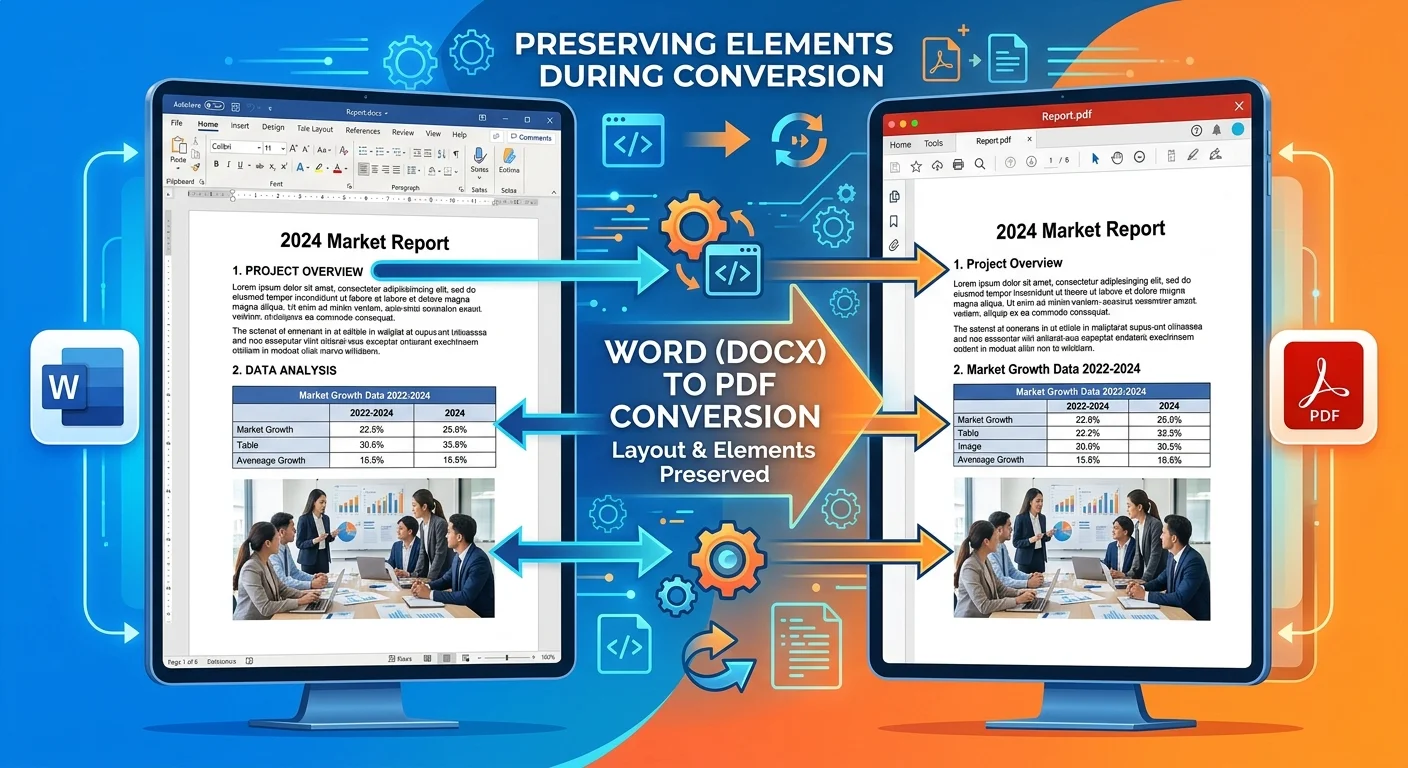
To convert DOCX to PDF means transforming a Microsoft Word document into a Portable Document Format file so that every element of the original, including text, headings, images, tables, and page breaks, appears exactly the same regardless of the device or software used to open it. Office document users face this task daily, whether they are sending contracts, submitting academic papers, or distributing reports to clients.
The stakes are higher than most people realize: a misaligned heading, a shifted image, or a broken font can undermine professionalism and even cause legal headaches. Understanding what this conversion actually involves, how the technology works behind the scenes, and which pitfalls to avoid puts you in a much stronger position. This guide breaks the process down clearly so anyone working with Word files can produce polished, reliable PDFs every single time.
Key Takeaways
- Converting DOCX to PDF locks your document layout so recipients see exactly what you intended.
- Online and offline pdf conversion tools each have distinct strengths worth knowing about.
- Font embedding is the single biggest factor in whether formatting survives the conversion.
- Batch processing can save hours when you need to export word as pdf across many files.
- Always verify your output PDF on a different device before sharing it externally.
What Does It Mean to Convert DOCX to PDF?
The Anatomy of a DOCX File
A DOCX file is not a single monolithic block of data. It is actually a ZIP archive containing XML files, media assets, and style definitions that Microsoft Word interprets at runtime. When you open a DOCX on a computer that lacks the exact fonts or Word version used to create it, the software substitutes alternatives and recalculates spacing. This is why the same document can look different on two machines.
The XML structure describes paragraphs, runs of text, heading levels, table dimensions, and image placements using relative references. Word processes these instructions dynamically each time you open the file. That dynamic rendering is useful for editing but terrible for final distribution. You need a format that freezes everything in place, which is precisely what PDF does. To learn more about what a PDF file actually is, it helps to understand how it differs structurally from editable formats.
How PDF Captures Your Layout
PDF was designed by Adobe in 1993 specifically to present documents consistently across platforms. Instead of storing instructions that get interpreted differently by different software, a PDF stores the final rendered output: exact glyph positions, embedded fonts, and fixed image coordinates. Think of it as a photograph of your document's layout, but one that retains searchable text and accessible metadata.
When you convert DOCX to PDF, the conversion engine reads every XML instruction in the DOCX, renders it into a fixed layout, and writes the result as a PDF stream. The output is independent of operating system, screen resolution, and installed software. This is why PDFs are the gold standard for sharing finished documents.
How the Conversion Process Works
Rendering and Flattening
The first stage of any word to pdf conversion involves parsing the DOCX archive. The converter unpacks the ZIP, reads the document.xml file for content structure, examines styles.xml for formatting rules, and pulls media from the word/media folder. A good pdf conversion tool processes all of these simultaneously to reconstruct the document exactly as Word would display it.
After parsing, the engine renders each page into a fixed coordinate system. Text strings receive absolute X and Y positions. Tables are drawn as vector lines with cell contents placed precisely. Headers and footers are replicated on every relevant page. This "flattening" step is where formatting either survives perfectly or breaks apart, depending on the quality of the tool. A robust docx to pdf online service handles edge cases like nested tables, text boxes, and section breaks that simpler tools often mangle.
Font Embedding and Image Handling
Font handling is the trickiest part of the process. If the converter does not embed the fonts used in the DOCX, the PDF viewer will substitute a different typeface, which shifts character widths and ruins alignment. Quality converters embed font subsets (only the glyphs actually used) to preserve formatting pdf output while keeping file size reasonable. This is why your PDF sometimes jumps from 50 KB to 300 KB; those extra bytes are embedded font data.
Before converting, check that your DOCX uses standard fonts like Arial, Calibri, or Times New Roman to minimize font substitution risks.
Images follow a simpler path. The converter extracts each image from the DOCX archive, determines its target resolution and placement, and writes it into the PDF stream at the correct coordinates. Vector graphics (like SmartArt or charts) get converted to PDF vector objects, maintaining infinite scalability. Raster images retain their original resolution, so a low-quality screenshot in Word will remain low-quality in the PDF. There is no magic enhancement during conversion.
Why Preserving Formatting Matters
Professional and Legal Use Cases
In business, formatting is not decorative; it carries meaning. A contract with misaligned signature lines looks unprofessional at best and unenforceable at worst. Financial reports with shifted columns can misrepresent data. When you export word as pdf for a board presentation, every chart label and footnote must land exactly where you placed it. The cost of getting this wrong ranges from embarrassment to regulatory noncompliance.
Law firms routinely convert DOCX to PDF before filing court documents. Many jurisdictions mandate PDF/A, an archival subset of the PDF standard that requires all fonts to be embedded and prohibits external dependencies. Using a tool that produces compliant PDF/A output saves attorneys from rejected filings. Similarly, government agencies often specify PDF as the only accepted submission format, making reliable conversion a daily necessity for public sector workers.
"A document that looks perfect on your screen means nothing if it falls apart on your recipient's device."
Academic and Publishing Scenarios
Researchers submitting papers to journals almost always need to preserve formatting pdf output with precision. Journals specify exact margins, font sizes, and heading hierarchies. A student submitting a thesis through an online portal cannot afford to have their carefully formatted bibliography wrap incorrectly or their figure captions drift below the fold. These are not hypothetical problems; they are weekly frustrations in university IT support queues.
Publishing workflows also depend on accurate conversion. Authors draft in Word, editors review in Word, and the final deliverable ships as PDF. At each handoff, someone needs to convert and verify. Modern AI-powered PDF tools are now capable of not only converting but also analyzing PDF content for accuracy, which adds a layer of quality assurance that manual checks cannot match at scale.
If your DOCX uses custom styles or macros, test the conversion output carefully, as these elements are frequently lost or misinterpreted.
| Method | Font Embedding | Batch Support | Offline Use | Best For |
|---|---|---|---|---|
| Microsoft Word "Save As" | Partial | No | Yes | Quick single-file exports |
| Online converter (browser) | Yes | Varies | No | Users without Word installed |
| Dedicated desktop tool | Yes | Yes | Yes | High-volume office workflows |
| Command-line tool (LibreOffice) | Yes | Yes | Yes | Developers and automation scripts |
| API-based service | Yes | Yes | No | App integrations and SaaS products |
Common Misconceptions and How to Avoid Them
Myth: All Converters Produce Identical Results
This is the most widespread misconception. Different conversion engines interpret DOCX markup differently. Microsoft Word's own "Save As PDF" function uses its proprietary rendering engine, which naturally handles Word-specific features well. Third-party tools rely on open-source parsers or their own rendering logic, which may interpret complex layouts differently. Two tools given the same DOCX can produce noticeably different PDFs, especially with documents that use text wrapping around images, multi-column sections, or conditional formatting.
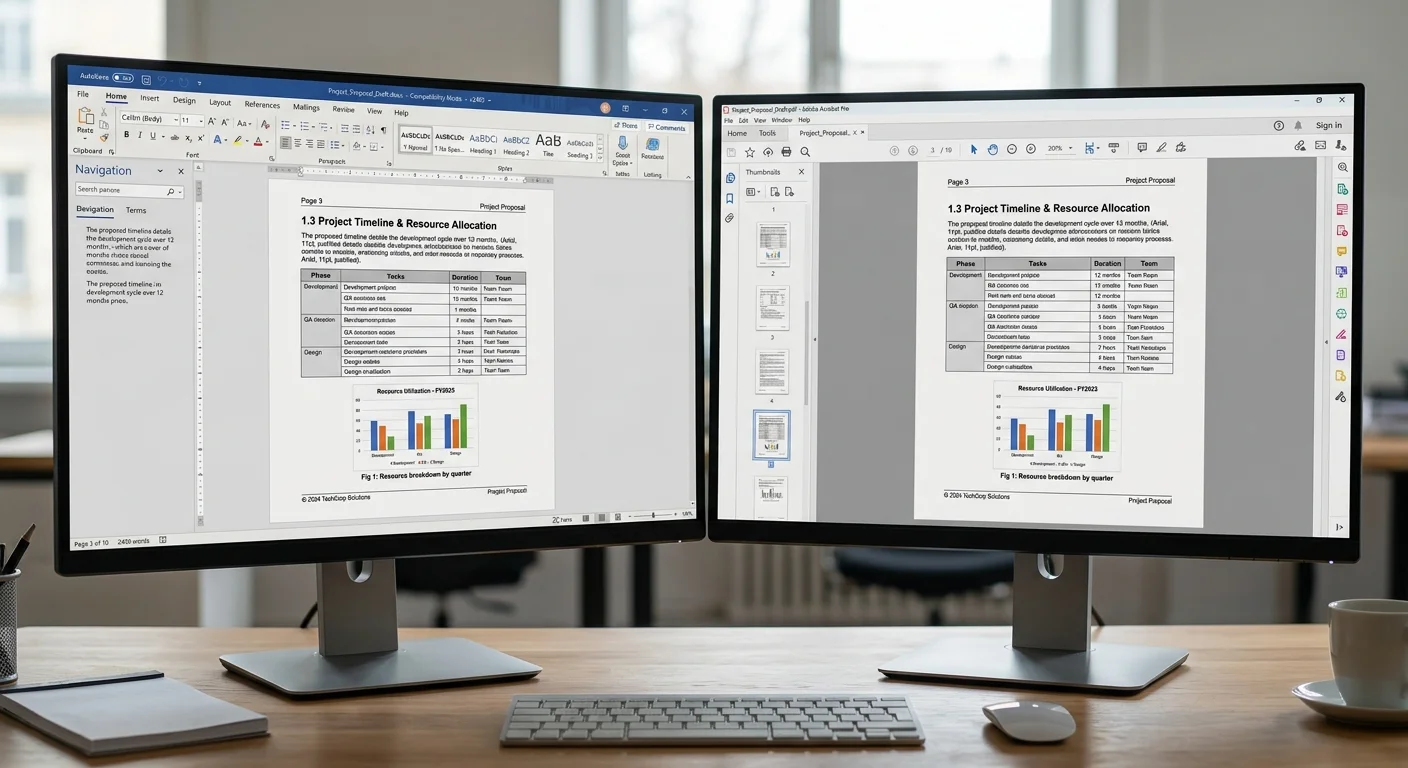
The practical takeaway is straightforward: test your specific documents with your chosen tool before committing to a workflow. Upload a representative sample, convert it, and compare the PDF against the original Word file side by side. Pay close attention to page breaks, table borders, and any elements positioned using Word's layout options. This five-minute check can prevent hours of rework. Just as you would verify your website's metadata before publishing, you should verify your PDF output before distributing it.
Free online converters may store uploaded documents on their servers. Check the privacy policy before uploading sensitive files.
Myth: PDF Files Are Always Smaller
Many users assume that converting to PDF automatically compresses the file. In reality, PDF files can be larger than their DOCX counterparts, particularly when fonts are embedded and images are stored at full resolution. A DOCX with several high-resolution photographs might be 5 MB, while the resulting PDF could reach 8 MB because the converter embeds font subsets and stores images without additional compression.
If file size matters for your use case (email attachments, web downloads, archival storage), look for a pdf conversion tool that offers compression settings. Most quality tools let you choose between "print quality" and "web quality" output, trading some image resolution for a significantly smaller file. Reducing image DPI from 300 to 150 can cut file size by 40% or more with minimal visible quality loss on screen. Run a quick test to find the right balance for your audience and distribution channel.
Frequently Asked Questions
?How do I check if fonts were embedded after converting DOCX to PDF?
?Is online or offline DOCX to PDF conversion better for sensitive documents?
?Does converting DOCX to PDF always reduce the file size?
?Why does my converted PDF look different when opened on another device?
Final Thoughts
Converting DOCX to PDF is a routine task that carries real consequences when done poorly. The goal is simple: your recipient should see exactly what you designed, with no shifted tables, swapped fonts, or missing images. Choose a conversion method that matches your volume and sensitivity requirements.
Always verify the output on a device other than the one you used to create the original. When you treat PDF conversion as a quality checkpoint rather than an afterthought, every document you send reflects the professionalism it deserves.
Disclaimer: Portions of this content may have been generated using AI tools to enhance clarity and brevity. While reviewed by a human, independent verification is encouraged.