DOCX to PDF font problems are the silent productivity killer in offices everywhere. You spend an hour perfecting a proposal in Word, hit convert, and the PDF comes back with shifted margins, substituted fonts, and broken tables. It's maddening, and it happens more often than most people realize. The root cause usually comes down to how Word documents store font references versus how PDF renderers interpret them.
When the conversion tool lacks access to the original typeface, it substitutes a fallback, which triggers a cascade of layout shifts. This guide walks you through four practical steps to diagnose and fix these issues fast, so your documents look exactly the way you intended. If you want a broader overview first, our complete guide to what DOCX to PDF conversion actually involves is a solid starting point.
Key Takeaways
- Embed all custom fonts in your Word file before converting to PDF.
- Use standard fonts like Arial or Calibri to minimize substitution risks.
- Check page size and margin settings match between your DOCX and PDF output.
- Online converters vary wildly in how they handle complex formatting.
- Testing with a short sample document saves time before converting large files.
Step 1: Diagnose Font Substitution Problems
How Font Embedding Works in DOCX Files
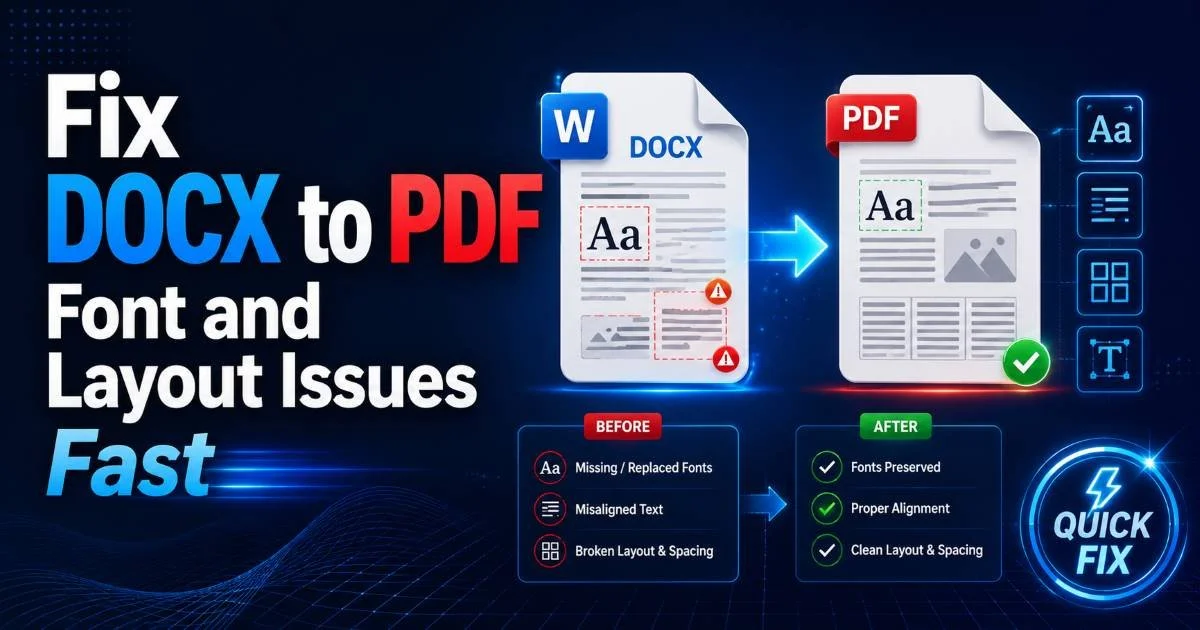
A DOCX file doesn't actually contain your fonts by default. It stores references to font names, and the rendering application (whether Word, LibreOffice, or a PDF converter) tries to locate those fonts on the system where conversion happens. If you use a typeface like "Gotham" or "Avenir Next" that isn't installed on the conversion server, the tool picks a substitute. That substitute almost never matches the original's character widths, which causes text to reflow across lines and push content onto extra pages.
Microsoft Word offers a built-in font embedding feature. Go to File, then Options, then Save, and check "Embed fonts in the file." This bundles the actual font data inside your DOCX. The file size increases (sometimes by 2 to 5 MB per font family), but the tradeoff is worth it for documents heading to external systems. Keep in mind that some font licenses restrict embedding, so corporate typefaces may not allow it.
Always check "Do not embed common system fonts" to keep file size manageable while still embedding your custom typefaces.
Spotting Substitution in Your PDF
Open your converted PDF in Adobe Acrobat Reader (or any decent PDF viewer) and go to File, then Properties, then Fonts. This panel lists every font used in the document and whether it's embedded or substituted. If you see entries like "ArialMT" replacing "HelveticaNeue," that's your culprit. Cross-reference this list against the fonts in your original Word file. Each substitution is a potential layout break, especially in headers and tables where spacing matters most.
Another quick diagnostic: print both the DOCX and the PDF side by side at the same scale. Visual comparison reveals spacing issues that are easy to miss when scrolling on screen. Pay special attention to justified text blocks, because font substitution changes character widths, and justified paragraphs amplify those differences across every single line. Understanding the key differences between DOCX and PDF formats helps explain why these discrepancies occur at a structural level.
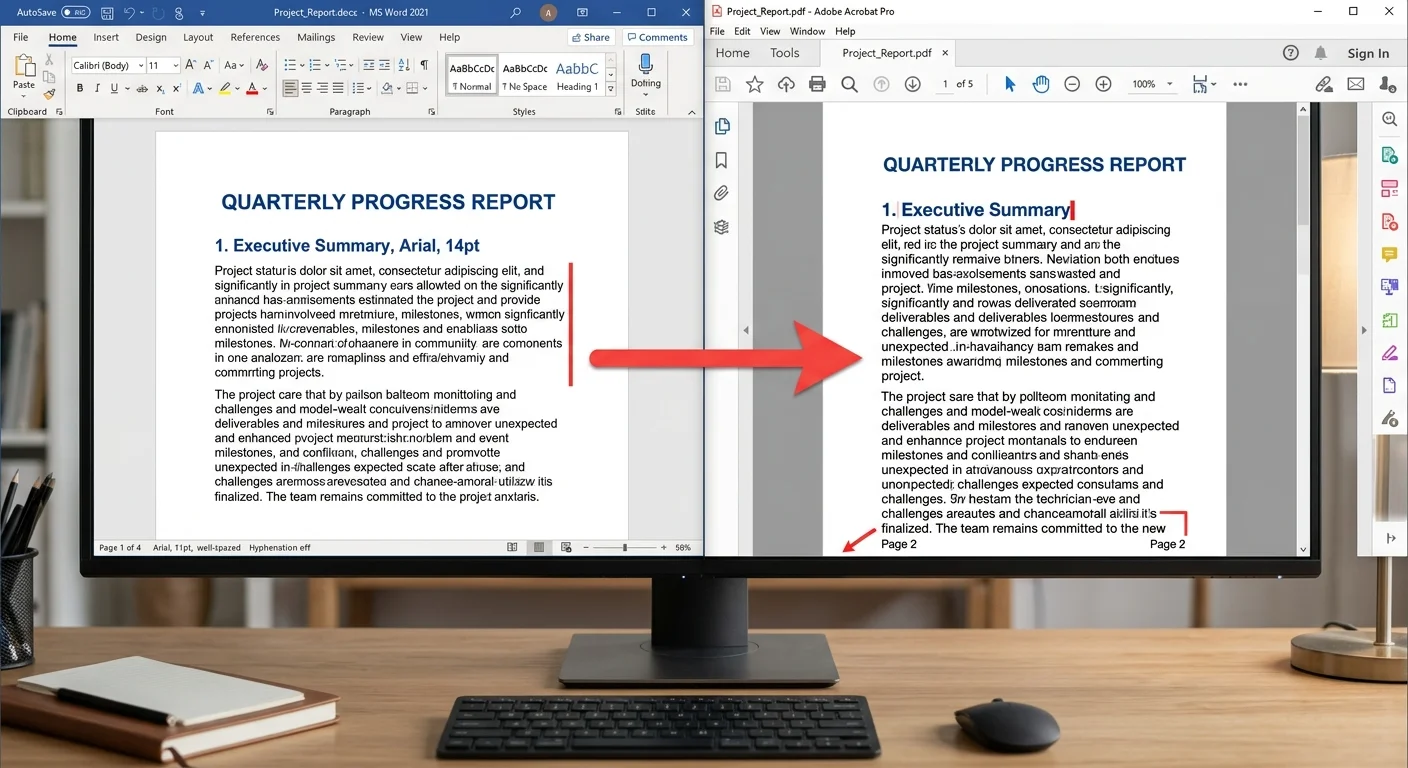
Step 2: Fix Layout Shifts Caused by Missing Fonts
Once you've identified which fonts are getting substituted, you have two clear paths forward. The first option is to replace non-standard fonts in your source document with widely available alternatives. Calibri, Arial, Times New Roman, and Georgia are installed on virtually every system. Switching to these fonts before conversion eliminates the substitution problem entirely. It's not glamorous, but it's reliable, and for internal reports or contracts, nobody will notice the difference.
The second option is to embed your preferred fonts directly (as described above) and use a converter that respects embedded font data. Not every tool does this well. Some online converters strip embedded fonts during processing, which defeats the purpose. When you need to convert DOCX to PDF without losing formatting, your choice of converter matters as much as your document preparation. We'll cover tool selection in Step 3.
Free font download sites often provide incomplete font families missing bold or italic variants, which causes partial substitution in converted PDFs.
Margin and Page Size Mismatch
DOCX to PDF font issues aren't the only layout breaker. Margin and page size mismatches account for a surprising number of "everything shifted" complaints. If your Word document is set to Letter (8.5 x 11 inches) but your converter defaults to A4 (210 x 297 mm), content gets rescaled. This is especially common with European converters processing American documents, and vice versa. Always verify page size in Layout, then Page Setup before converting.
Headers and footers are another frequent casualty. Word uses a separate text layer for headers, footers, and page numbers. Some converters handle this layer poorly, causing overlaps or misalignment. If your header text appears shifted down into the body content in the PDF, check the "Header from Top" and "Footer from Bottom" distance values in your Word document. Set these to explicit values (like 0.5 inches) rather than relying on defaults that may vary between systems.
Step 3: Choose a Converter That Preserves Formatting
Comparing Conversion Tools
Not all PDF converters treat your formatting with equal respect. Desktop applications like Microsoft Word's built-in "Save as PDF" feature generally produce the most faithful output because they use the same rendering engine that displays the document on screen. LibreOffice offers a solid free alternative, though it occasionally interprets Word-specific features (like SmartArt or advanced text effects) differently. Online tools introduce another variable: your fonts need to be available on the server side, which is rarely the case for custom typefaces.
When evaluating free online Word to PDF converters, test them with a sample document that includes your most complex formatting. Include tables, custom fonts, headers, footers, and at least one image. This stress test reveals problems before you run a 40-page report through the tool. Our converter at docxtopdf.dev is built specifically to handle these edge cases while keeping your content intact.
Security is another factor that deserves attention. Uploading sensitive documents to random online converters exposes your data to unknown servers. Some services retain uploaded files for hours or even days. Before you upload that confidential contract, it's worth understanding the hidden security risks in print-to-PDF workflows. Choose converters that process files locally in your browser or explicitly guarantee immediate deletion of uploaded content.
Browser-based converters that process files client-side never send your document to a server, making them the safest online option.
| Issue | Root Cause | Fix |
|---|---|---|
| Font substitution | Custom font not available on converter | Embed fonts or switch to standard typefaces |
| Text reflow / extra pages | Different character widths in substitute font | Match font metrics or embed original font |
| Shifted margins | Letter vs. A4 page size mismatch | Set explicit page size before converting |
| Header/footer overlap | Inconsistent header distance values | Set fixed header/footer distances in Page Setup |
| Broken tables | Column widths exceed page margins in PDF | Use percentage-based column widths |
| Missing bold/italic | Incomplete font family embedded | Embed all font variants (regular, bold, italic) |
Step 4: Prevent Future DOCX to PDF Font Problems
Build a Bulletproof Document Template
The smartest fix is prevention. Create a Word template (.dotx file) that uses only web-safe or widely distributed fonts, has explicit margin and page size settings, and includes properly defined styles for headings, body text, and table formatting. Distribute this template to your team. When everyone starts from the same base, DOCX to PDF font problems drop dramatically. This approach mirrors the philosophy behind maintaining clean, well-structured codebases; sometimes the discipline of refactoring existing systems rather than starting from scratch yields the best long-term results.
Define your styles using Word's built-in Style gallery rather than applying formatting manually. Manual formatting (selecting text and clicking Bold) creates direct formatting overrides that behave unpredictably during conversion. Styles, by contrast, are semantic labels that converters interpret consistently. If "Heading 1" is defined as 18pt Calibri Bold in your template, every converter will attempt to render it exactly that way, reducing surprises in the final PDF output.
"The best DOCX to PDF font fix is the one you apply before you ever start writing."
Version control matters, too. When multiple people edit a document, each person's Word installation might substitute fonts locally without anyone noticing. The final document arrives at the converter carrying a patchwork of formatting decisions. Before converting, run a final check: select all text (Ctrl+A), apply your template's body text style, then reapply heading styles to the appropriate sections. This "formatting reset" catches inconsistencies introduced during collaborative editing and gives you a clean starting point.
Finally, always generate a test PDF before distributing the final version. Open the PDF on a device that doesn't have your custom fonts installed (a phone works perfectly for this). Check every page, paying close attention to page breaks, table alignment, and text spacing. This 60-second quality check catches problems that would otherwise reach your clients, colleagues, or regulatory reviewers. Make it a habit, and DOCX to PDF font issues become a thing of the past.
Save your pre-conversion checklist as a sticky note on your monitor: embed fonts, verify page size, check styles, test on a second device.
Frequently Asked Questions
?How do I embed fonts in a DOCX before converting to PDF?
?Does embedding fonts in DOCX always fix PDF layout shifts?
?How much does font embedding increase my DOCX file size?
?Can I tell if my converted PDF has substituted fonts without Acrobat Pro?
Final Thoughts
DOCX to PDF font and layout issues are fixable, and most solutions take less than five minutes once you know where to look. Embed your fonts, standardize your templates, verify your page settings, and choose a converter that actually respects your formatting.
The four steps in this guide address the root causes rather than the symptoms. Apply them consistently across your workflow, and you'll stop wasting time on broken PDFs for good.
Disclaimer: Portions of this content may have been generated using AI tools to enhance clarity and brevity. While reviewed by a human, independent verification is encouraged.