When you need to convert DOCX to PDF, you're making a choice between two of the most widely used document formats in modern computing. Microsoft Word's DOCX format and Adobe's PDF format each serve distinct purposes, and understanding their differences can save you hours of frustration.
Whether you're submitting a report, sharing a contract, or archiving business records, picking the wrong format often leads to broken layouts, missing fonts, or documents that look different on every device. A reliable PDF converter bridges this gap, but knowing when to use each format matters just as much as knowing how to switch between them. T
his guide provides a thorough complete guide to DOCX to PDF conversion by comparing these formats across the dimensions that actually affect your daily work. We'll examine editing flexibility, visual consistency, file size, security, and real-world use cases so you can make an informed decision every time.
Key Takeaways
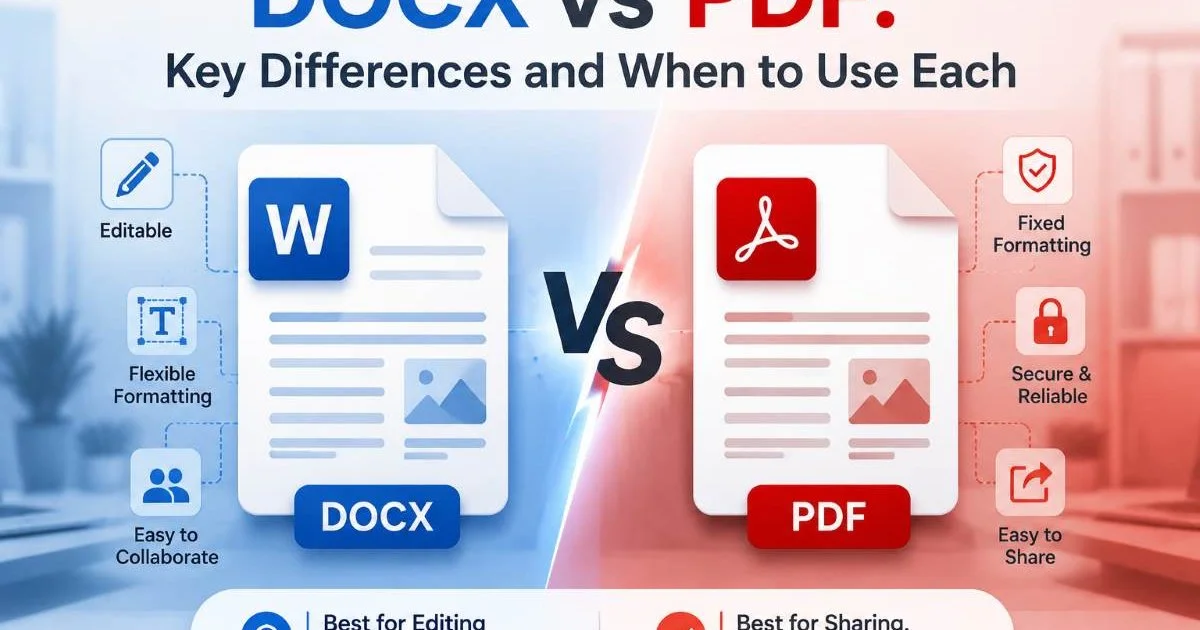
- DOCX files are built for editing; PDF files are built for sharing and preserving layout.
- PDF conversion locks your DOCX formatting so recipients see exactly what you intended.
- DOCX files are typically smaller, but PDFs compress images and fonts more efficiently at scale.
- PDFs support password protection and digital signatures natively, making them ideal for sensitive documents.
- Choose DOCX for collaboration drafts and PDF for any document you consider final.
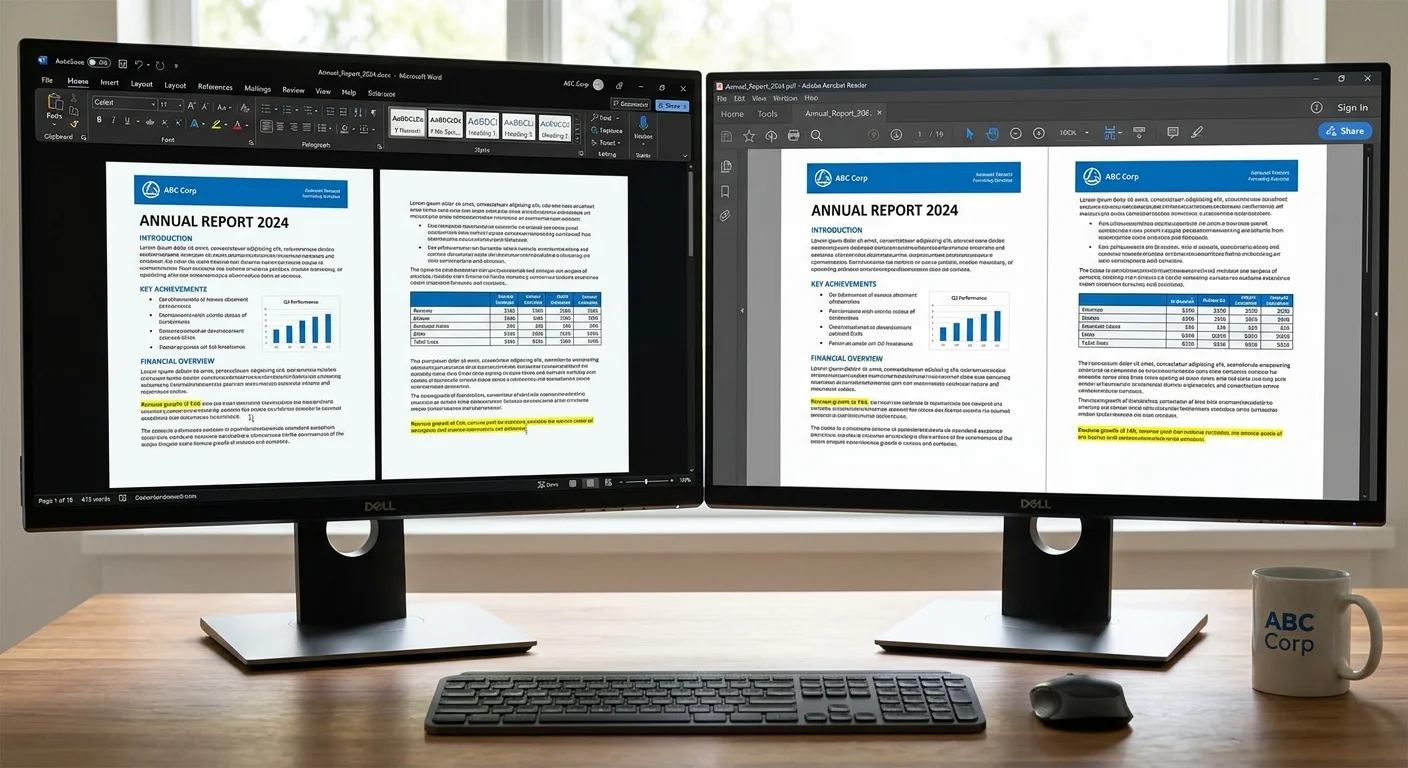
Editing Flexibility and Collaboration
DOCX Editing Strengths
DOCX files are XML-based documents designed from the ground up for editing. Microsoft Word, Google Docs, LibreOffice Writer, and dozens of other applications can open, modify, and save them. Track Changes, commenting, and real-time co-authoring all work natively in the DOCX format. If your team is drafting a proposal or iterating on a marketing brief, DOCX is the obvious choice because every collaborator can make and review changes without specialized software.
The format also supports macros, templates, and dynamic content fields. You can insert auto-updating dates, table-of-contents generators, and mail merge fields directly into a DOCX file. These features make Word documents extremely productive during the creation phase. No other widely used format offers this level of built-in editing infrastructure for everyday office work.
Keep your collaborative drafts in DOCX until all stakeholders have approved the final version, then convert to PDF for distribution.
PDF Editing Limitations
PDFs were never intended for heavy editing. While tools like Adobe Acrobat Pro, Foxit, and various AI-powered PDF tools allow basic text and image modifications, these edits are clunky compared to working in Word. Changing a paragraph in a PDF often requires manual repositioning of every element below it. The format treats text as positioned objects on a page rather than as flowing content, which makes structural edits painful and time-consuming.
That said, PDFs do support annotations, stamps, and form filling. For review workflows where readers only need to add comments (not rewrite content), PDF annotation works well. Adobe's comment tools, sticky notes, and highlighting features are mature and widely supported. But if someone asks you to "just make a quick edit" to a PDF, you'll almost always find it faster to go back to the source DOCX, edit there, and then convert it again.
Formatting and Visual Consistency
Why DOCX Formatting Shifts
One of the biggest frustrations with DOCX files is that they can look different depending on which application opens them and which fonts are installed on the viewer's computer. A document created in Microsoft Word on Windows may render with shifted margins, substituted fonts, or broken tables when opened in LibreOffice on Linux. Even different versions of Word itself can cause minor layout discrepancies. This inconsistency makes DOCX a risky choice for documents where precise appearance matters.
The root cause is that DOCX files reference fonts and styles rather than embedding them by default. When the recipient's system lacks a specified font, the application substitutes another one, and the substitution rarely matches the original's character widths. If you've ever opened a colleague's document and found text spilling past page margins or table columns misaligned, you've experienced this firsthand. Learning how to convert DOCX to PDF without losing formatting solves this problem permanently for final documents.
"A document that looks perfect on your screen means nothing if it falls apart on the recipient's device."
PDF as a Fixed Layout
PDF stands for Portable Document Format, and the "portable" part is the key advantage. When you run a DOCX file through a PDF converter, the output embeds fonts, flattens layout positions, and creates a pixel-perfect representation of your document. It will look identical on a Windows laptop, an iPad, an Android phone, or a Linux workstation. This visual consistency is why PDFs dominate in legal, financial, medical, and government contexts where formatting integrity is non-negotiable.
PDF conversion also preserves complex elements that DOCX files sometimes struggle to display consistently across platforms: embedded charts, watermarks, headers with mixed alignment, custom page borders, and layered images. The trade-off is that this fixed layout makes editing difficult, but that's exactly the point. Once your document is final, converting it to PDF is like laminating it. You're preserving it as-is for every future reader.
Some PDF converters produce higher-fidelity output than others. Test your chosen tool with a complex document before relying on it for critical files.
File Size, Security, and Compatibility
Size and Compression
For simple text documents, DOCX files are generally smaller than their PDF equivalents because the XML structure is lightweight and compresses well. A five-page text document might be 25 KB as a DOCX but 80 KB as a PDF. However, the comparison flips when documents contain many images. DOCX files often store images at full resolution, while PDF creation tools can compress images during conversion, sometimes producing a smaller final file than the original Word document.
When you're handling large volumes of files, size differences add up. If you regularly batch convert multiple Word files to PDF, you'll notice that optimized PDF output can actually reduce your total storage footprint. Modern PDF creation tools offer compression settings that let you balance quality against file size, which is particularly useful for email attachments that need to stay under corporate size limits.
Security Features
PDF has a clear advantage in document security. The format natively supports 256-bit AES encryption, password protection for both opening and editing, digital signatures that verify authenticity, and permission controls that can prevent printing, copying, or modifying content. These features are part of the PDF specification itself, meaning any compliant reader will enforce them. For contracts, NDAs, medical records, and financial statements, PDF security features are practically required.
DOCX files offer password protection too, but it's less standardized and more easily bypassed. Word's document protection can prevent casual editing, but it doesn't approach the rigor of PDF encryption. Additionally, DOCX files can contain macros that pose security risks when opened; this is why many email systems automatically flag or block Word attachments. PDF files, by contrast, are generally considered safer to receive and open, though they aren't immune to all threats.
| Feature | DOCX | |
|---|---|---|
| Editing ease | Excellent | Limited |
| Visual consistency | Variable across devices | Identical everywhere |
| Font embedding | Optional (often skipped) | Standard |
| Password protection | Basic | Advanced (AES-256) |
| Digital signatures | Supported via add-ins | Native support |
| File size (text-heavy) | Smaller | Slightly larger |
| File size (image-heavy) | Larger | Smaller with compression |
| Macro support | Yes | No (by design) |
Never send sensitive documents as unprotected DOCX attachments. Convert to PDF with password protection or use encrypted file-sharing platforms.
Practical Use Cases and Recommendations
When DOCX Wins
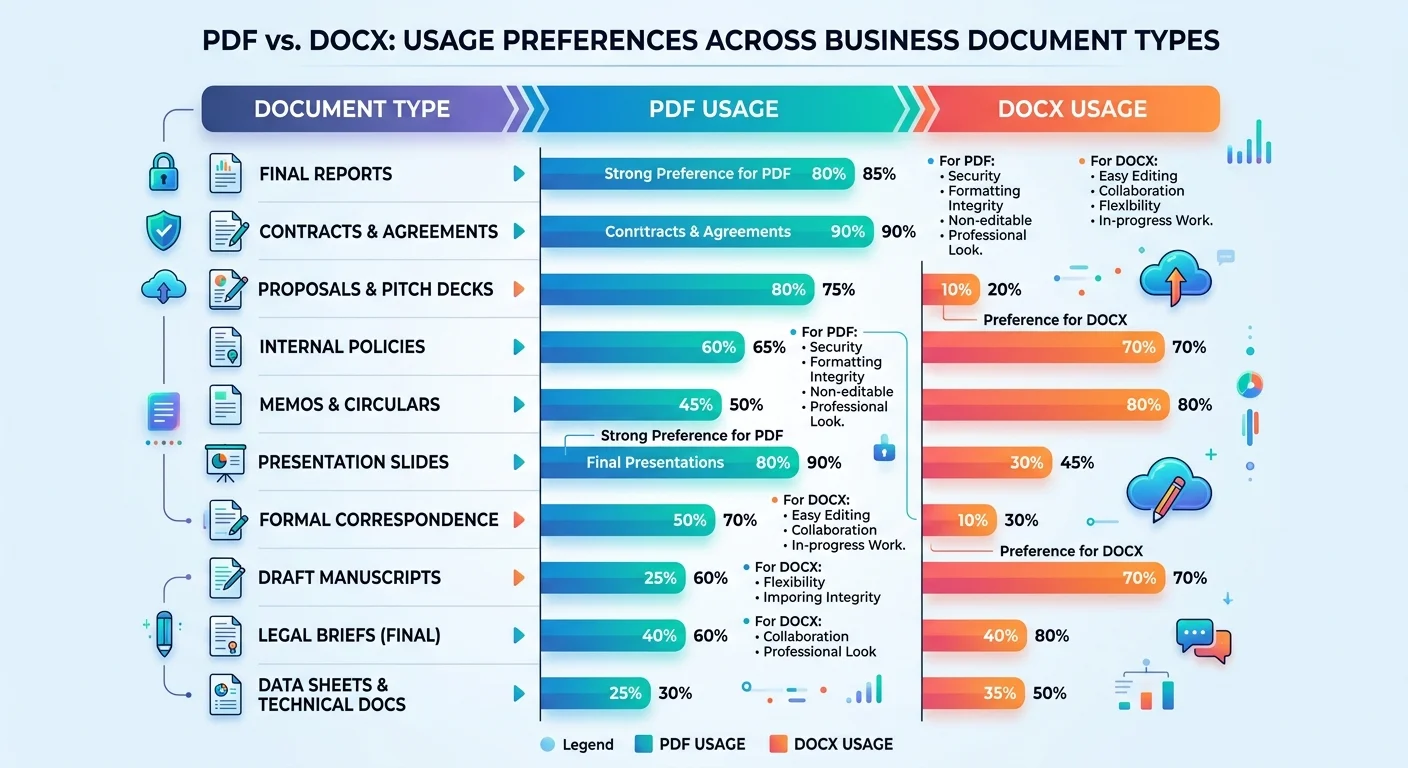
Use DOCX when the document is still a work in progress. Internal drafts, collaborative reports, meeting agendas, and any document requiring input from multiple people should stay in DOCX format until finalized. The editing tools available in Word and its alternatives are simply unmatched for productivity. DOCX also makes sense when your recipient explicitly needs to modify the content, such as filling in a template or customizing a proposal for their own use.
DOCX is also the better starting point for content that will be repurposed. If you're creating a blog post draft, a newsletter, or marketing copy that will eventually move into a CMS, DOCX preserves the semantic structure (headings, lists, emphasis) that AI blog writing tools and content platforms can interpret. Starting in PDF would create unnecessary conversion steps because you'd eventually need to extract the text back into an editable format.
When PDF Wins
Convert to PDF whenever you're sharing a final document externally. Invoices, resumes, contracts, white papers, product specifications, and official correspondence should always go out as PDFs. The format signals professionalism and guarantees that your carefully designed layout arrives intact. Courts, regulatory bodies, and academic institutions almost universally require PDF submissions because the format's integrity is well-established and legally defensible.
PDF also wins for archival purposes. The PDF/A subset is an ISO standard specifically designed for long-term document preservation. Organizations that need to store records for years or decades choose PDF/A because it eliminates external dependencies like linked fonts or embedded macros that could become incompatible over time. If you're evaluating tools for this purpose, comparing free online Word to PDF converters can help you find one that produces high-quality, archival-ready output without expensive software licenses.
Frequently Asked Questions
?How do I convert a DOCX to PDF without losing formatting?
?Can I edit a PDF after converting from DOCX?
?Does converting DOCX to PDF increase the file size significantly?
?Is it a mistake to send a DOCX file instead of a PDF for contracts?
Final Thoughts
DOCX and PDF aren't competitors; they're partners in a healthy document workflow. Use DOCX while you're creating and collaborating, then convert to PDF when the document is ready for its audience.
This approach gives you the best of both worlds: maximum editing flexibility during development and bulletproof formatting for distribution. The key is recognizing the transition point and having a reliable DOCX to PDF conversion tool ready when you reach it.
Stop treating format choice as an afterthought and start treating it as a deliberate step in your document process.
Disclaimer: Portions of this content may have been generated using AI tools to enhance clarity and brevity. While reviewed by a human, independent verification is encouraged.