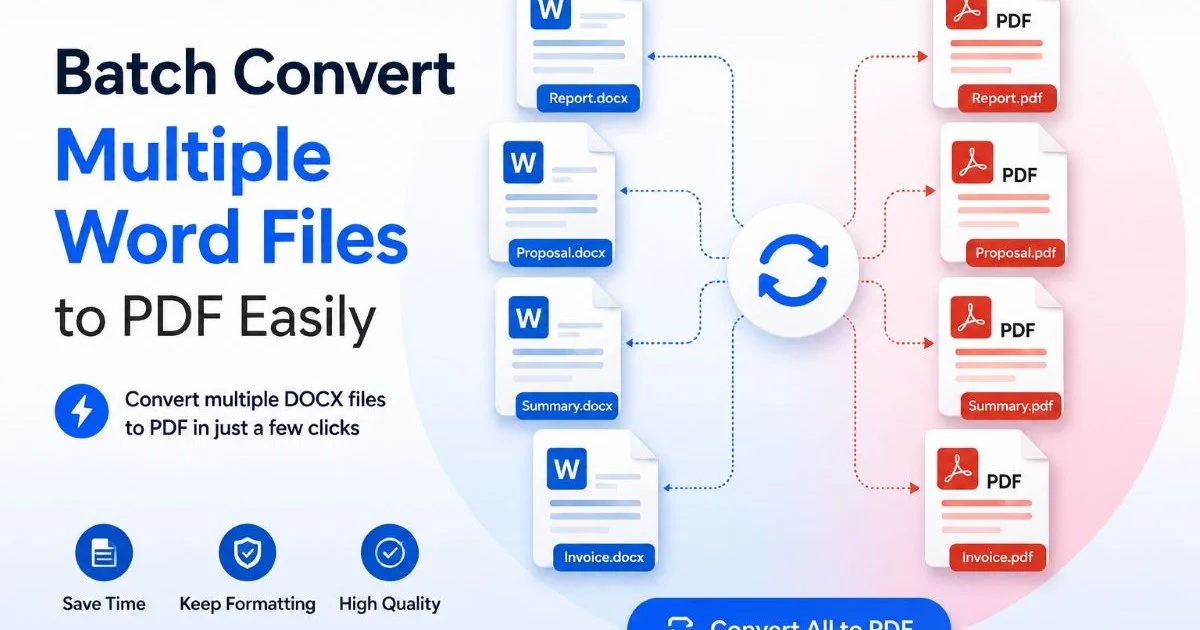
Multiple Word files piling up on your desktop before a deadline is a familiar frustration for anyone who works in an office. Whether you're preparing quarterly reports, compiling contracts, or packaging proposals, converting each DOCX file to PDF one at a time is a painful time sink. The good news is that batch conversion tools now make it possible to transform dozens or even hundreds of documents in minutes.
This guide walks you through the exact steps to batch convert multiple Word files to PDF without sacrificing formatting, fonts, or layout quality. Understanding the fundamentals of DOCX to PDF conversion will give you a solid foundation before you start processing files in bulk. By the end of this article, you'll have a clear, repeatable workflow you can use every week.
Key Takeaways
- Batch conversion eliminates the tedious process of converting documents one by one.
- Online tools work best for small batches; desktop software handles large volumes faster.
- Always verify fonts and layouts after converting multiple Word files at once.
- Organizing your files into a single folder before conversion prevents missed documents.
- Free tools often impose file size or daily conversion limits worth checking first.
Step 1: Organize Your Word Files for Batch Processing
Before you touch any conversion tool, gather every DOCX file you need into a single dedicated folder. Scattering files across your desktop, downloads folder, and email attachments is the fastest way to miss a document. Create a folder with a descriptive name like "Q2_Reports_ToConvert" and move all relevant files into it. This simple step also makes it easier to drag and drop an entire folder into most batch tools.
Check each file briefly to confirm it's the final version. Converting draft versions alongside finalized documents leads to confusion downstream, especially when you're distributing PDFs to clients or stakeholders. If you work collaboratively, make sure tracked changes have been accepted or rejected. Leftover revision marks can appear in the PDF output as visible comments or formatting artifacts.
Remove any files that don't need conversion. Mixed folders containing spreadsheets, images, or older DOC format files will either cause errors or slow down the process. If you also need to process spreadsheets, tools like AI-powered Excel assistants can handle those separately with better results than forcing them through a Word converter.
Naming Conventions That Save Time
Use consistent file naming before you start the batch. Many conversion tools preserve the original filename, so "Invoice_2024_001.docx" becomes "Invoice_2024_001.pdf" automatically. Avoid special characters like ampersands, slashes, or quotation marks in filenames because they can cause errors in some tools. Adding a date prefix such as "20240615_" to each file keeps your output folder sorted chronologically without extra effort.
Prefix files with dates (YYYYMMDD) so your converted PDFs sort themselves automatically in any file explorer.
Step 2: Choose the Right Batch Conversion Tool
The tool you pick depends on how many files you're converting, how often you do it, and whether you need the process to stay offline. For occasional batches of five to ten files, a browser-based converter works perfectly fine. For regular high-volume work with multiple Word files, a desktop application or command-line tool will serve you better. Each option comes with trade-offs in speed, privacy, and feature depth.
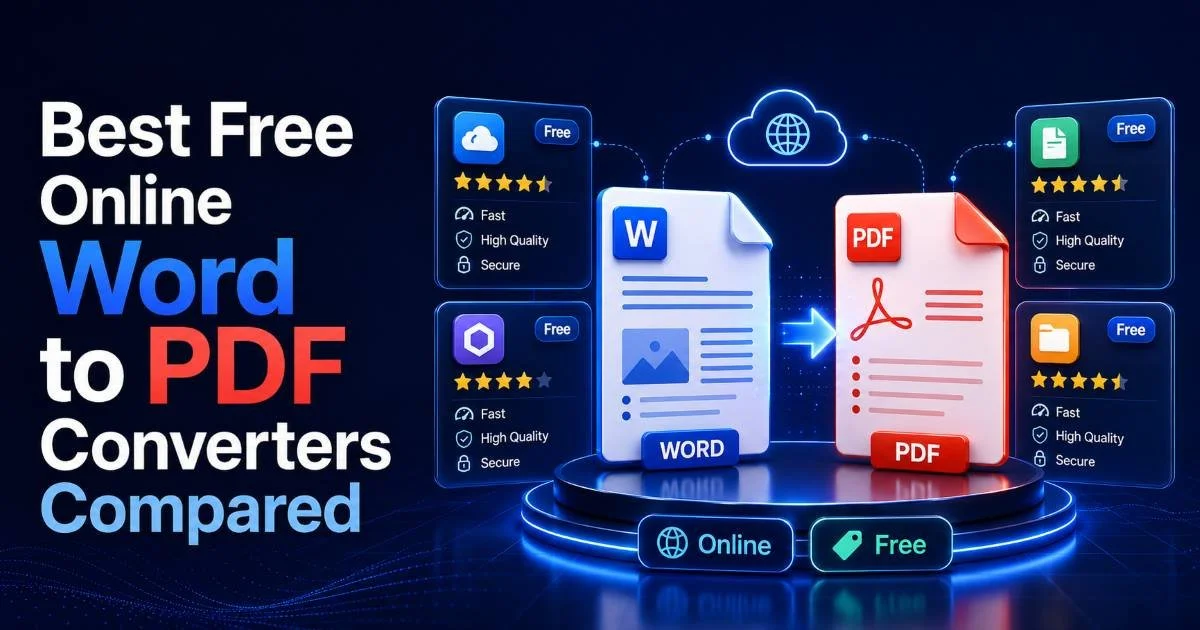
If you're evaluating free options, our comparison of free online Word to PDF converters breaks down the strengths and limitations of popular web-based tools. Pay attention to upload limits. Some free tools cap you at 5 MB per file or 20 conversions per day, which won't cut it when you're processing a stack of 50 contracts on a Monday morning.
Online vs. Desktop Conversion
Desktop tools like LibreOffice (using its command-line mode) or Microsoft Word's built-in macro capabilities process files locally, which means your documents never leave your machine. This matters significantly in industries like law, healthcare, and finance where confidentiality is non-negotiable. The trade-off is a slightly steeper learning curve, but the time savings compound rapidly once you've set up the workflow.
For teams that also manage legacy codebases or internal tooling, the mindset behind refactoring legacy code with the right tools applies here too: pick a reliable tool, test it on a small batch first, then scale up confidently. Conversion workflows benefit from the same incremental, cautious approach.
If your documents contain macros or active content, most converters will strip them during PDF creation. This is expected behavior.
Step 3: Run the Batch Conversion Process
With your files organized and your tool selected, it's time to run the actual conversion. If you're using an online tool, select all files from your prepared folder and upload them simultaneously. Most modern browser-based converters accept drag-and-drop for multiple Word files. The tool will queue them and process each document sequentially or in parallel depending on its architecture.
For desktop users running LibreOffice from the command line, the process is straightforward. Open your terminal, navigate to the folder containing your files, and run a command like libreoffice --headless --convert-to pdf *.docx. This single command converts every DOCX file in the directory. On a modern machine, processing 100 documents takes roughly two to five minutes, depending on complexity and file size.
"Batch conversion isn't just a convenience; it's a workflow multiplier that gives you back hours every month."
Common Settings to Configure
Before hitting the convert button, check the output settings. Most tools let you choose PDF compliance levels such as PDF/A for archival purposes or standard PDF for everyday use. If you're converting documents destined for a regulatory filing, PDF/A is typically required. Standard PDF is lighter and opens faster, making it the better default for internal distribution and email attachments.
| Setting | Recommended For | Notes |
|---|---|---|
| PDF/A (Archival) | Legal, compliance, long-term storage | Embeds all fonts; larger file size |
| Standard PDF | General office use, email | Smaller files; wide compatibility |
| Image Compression | Documents with photos or graphics | Reduces file size; slight quality loss |
| Bookmark Generation | Long reports with headings | Creates clickable navigation in PDF |
| Password Protection | Confidential or sensitive documents | Not all batch tools support this |
If your PDFs are destined for email, enable image compression to keep each file under 10 MB.
Some tools also offer the ability to merge all converted PDFs into a single file. This is useful when you're compiling a report package. However, keep the originals as separate PDFs too, because recipients often need individual documents for signing, forwarding, or filing. Running the batch with "separate output files" selected gives you the most flexibility.
Step 4: Verify Output and Troubleshoot Issues
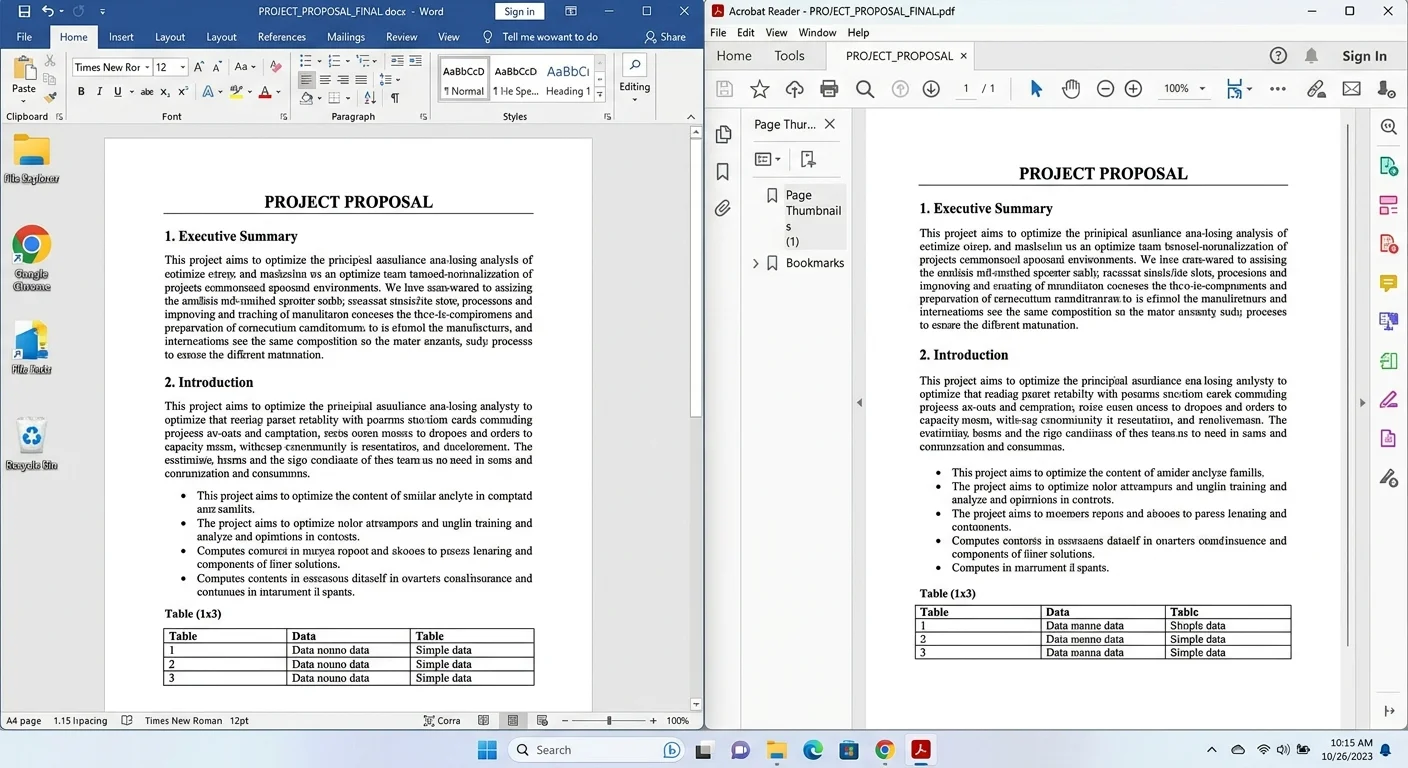
After conversion finishes, open a representative sample of your PDFs and compare them against the original Word documents. Check headers, footers, page numbers, and any tables or charts. Most conversion tools handle standard formatting well, but complex elements like nested tables, text boxes, and custom fonts are where problems typically surface. Spending five minutes on spot checks now prevents embarrassing errors later.
Font substitution is the most common problem you'll encounter when converting multiple Word files in bulk. If a DOCX file uses a font that isn't installed on your system (or available to the online tool), the converter will substitute a default font. This can shift line spacing, break table alignments, and change the overall look of the document. For a deeper dive into solving these problems, read our guide on how to fix DOCX to PDF font and layout issues fast.
Fixing Font and Layout Problems
The simplest fix is to embed fonts in your Word documents before conversion. In Microsoft Word, go to File, then Options, then Save, and check "Embed fonts in the file." This increases the DOCX file size but guarantees the converter has access to the correct typefaces. For LibreOffice users, the equivalent setting is found under Tools, then Options, then LibreOffice Writer, then Print.
Layout shifts often occur in documents that rely heavily on manual spacing (pressing Enter repeatedly) rather than proper paragraph spacing settings. If your PDFs show uneven gaps or misaligned elements, open the original Word file and replace manual breaks with proper "Space After" paragraph formatting. This makes the document more predictable across different conversion engines. Our detailed article on converting DOCX to PDF without losing formatting covers additional techniques for preserving visual fidelity.
Never assume all files converted correctly. Always open at least 10% of your output PDFs to verify formatting.
If you find consistent errors across many files, the issue is likely systemic rather than document-specific. Check whether the conversion tool is up to date, verify that all required fonts are installed, and confirm that the source files aren't corrupted. Running a second pass on the problematic files after addressing the root cause usually resolves the remaining issues cleanly.
Frequently Asked Questions
?How do I prevent font and layout issues when batch converting DOCX to PDF?
?Should I use an online tool or desktop software for large batches of Word files?
?Do free batch conversion tools have limits that could slow down my workflow?
?Will tracked changes in my Word files show up in the batch-converted PDFs?
Final Thoughts
Batch converting multiple Word files to PDF doesn't have to be a stressful, repetitive chore. With a well-organized folder, the right tool for your volume and privacy needs, and a quick post-conversion quality check, you can process entire document sets in minutes.
The workflow outlined here scales from a handful of invoices to hundreds of legal documents. Set it up once, refine it based on your specific needs, and you'll reclaim significant time every week that you can spend on work that actually requires your attention.
Disclaimer: Portions of this content may have been generated using AI tools to enhance clarity and brevity. While reviewed by a human, independent verification is encouraged.